How to schedule social media posts: a step-by-step guide
How to schedule posts to Instagram, LinkedIn, X, TikTok and Facebook in advance — native tools vs. a scheduler, plus a weekly routine that keeps it light.
By The Postreo team
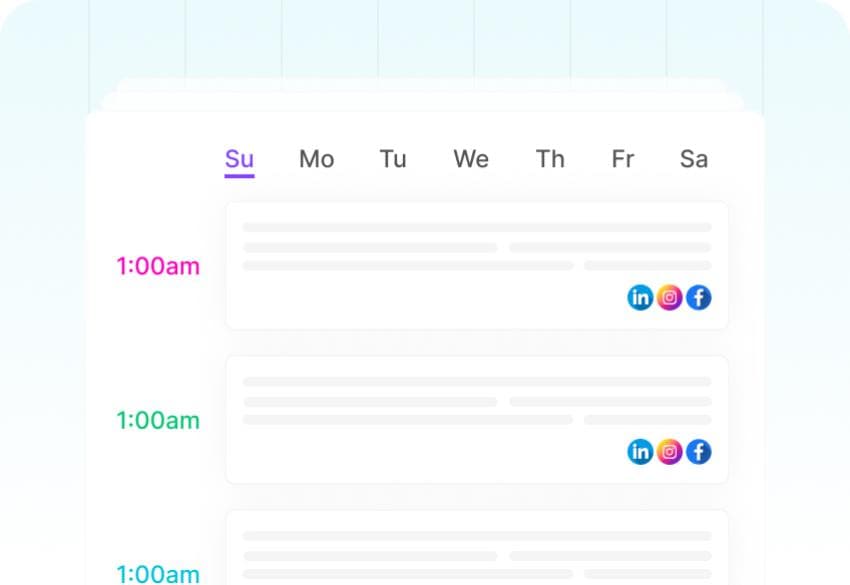
Scheduling social media posts means writing them ahead of time and setting them to publish automatically at a chosen date and time. Instead of stopping work every day to post, you prepare a batch in one sitting and let the queue run. It's the single biggest time-saver in social media work, and it's also what makes posting consistently realistic for small teams.
This guide covers the two ways to schedule — each network's own tools, or a social media scheduler that posts to all of them — and a simple routine for keeping a week of posts queued without it taking over your week.
Why schedule social media posts at all?
- Consistency: posts go out on a steady rhythm even on busy days, holidays and sick days.
- Better writing: a caption written in a focused batch is usually better than one written in a hurry between meetings.
- Timing: you can publish when your audience is online, even if that's outside your working hours or time zone.
- Visibility: when the week is laid out on a calendar, the whole team can see what's going out and spot gaps or clashes.
- Fewer mistakes: there's time to proofread, check links and get a second opinion before anything goes live.
Option 1: Schedule with each network's built-in tools
Most major networks let you schedule posts natively. Meta Business Suite schedules Facebook and Instagram posts, LinkedIn lets you schedule from the post composer, YouTube lets you set a publish time for uploads, and TikTok supports scheduling from its desktop site.
Native scheduling is free and works well if you post to one or two networks. It gets painful past that: you write the same post several times in several places, each tool has its own calendar, and nobody can see the full week in one view.
When native scheduling is enough
- You publish to one or two networks.
- One person handles all the posting.
- You post a few times a week rather than every day.
Option 2: Use a social media scheduler
A social media scheduler connects to all of your accounts and publishes to them from one place. You write a post once, choose which accounts it goes to, pick a time, and the scheduler handles publishing to each network. Everything you've queued appears on one content calendar.
This is the better fit once you're managing several networks, several accounts or several people. When choosing one, look for these:
- Support for every network you use — not just the big four. Check for Threads, Bluesky, Pinterest, YouTube or Google Business Profile if they matter to you.
- A separate version of each post per network, so your LinkedIn copy doesn't have to match your X copy.
- Previews that show how the post will actually look on each network before it goes out.
- Per-network character limits checked as you type.
- A clear warning — and automatic retries — when a post fails to publish.
- Team access with roles, if more than one person works on your accounts.
- Built-in analytics, so you can see what performed without visiting each network.
How to schedule a post, step by step
Whatever tool you use, the process is roughly the same. Here it is with a scheduler that covers several networks:
- Connect your accounts. Sign in to each network through the scheduler once; it keeps the connection alive afterwards.
- Write the post. Start with one core message and the image or video that goes with it.
- Tailor it per network. Shorten it for X, Threads and Bluesky; add context for LinkedIn and Facebook; adjust hashtags for Instagram and TikTok.
- Preview every version. Check the crop of the image, where the caption truncates and whether links render.
- Pick the date and time. Choose a time when that network's audience is most active — it can differ by network.
- Schedule it and check the calendar. Make sure it doesn't clash with another post going out the same hour.
A weekly routine that takes under an hour
The routine below is how most small teams keep a full week queued. The trick is to separate deciding what to post from writing it, and writing it from scheduling it.
- Collect (10 minutes): list everything worth sharing this week — a launch, a customer question, a useful tip, a behind-the-scenes photo, a blog post.
- Assign (5 minutes): give each item a day and a network on your content calendar. Spread different types of post across the week.
- Draft (25 minutes): write all of the posts in one pass without editing. Use AI to get a first draft if the blank box is slowing you down.
- Refine and schedule (15 minutes): tighten each version, preview it, and schedule it.
Leave one or two open slots each week for things you can't plan — news in your industry, a customer shout-out, a timely reply. A schedule should be a baseline, not a cage.
Common scheduling mistakes to avoid
- Posting identical copy everywhere. Each network has its own tone and length; the same caption reads awkwardly on at least one of them.
- Scheduling and forgetting. Check that queued posts still make sense in light of current events before they go out.
- Ignoring time zones. If your audience is in another region, schedule for their morning, not yours.
- Not checking previews. An image cropped badly on Instagram or a caption cut mid-word on LinkedIn is easy to miss without a preview.
- Never looking at the results. Scheduling is half the job; the other half is learning which posts worked so the next week is better.
Scheduling posts with Postreo
Postreo connects to more than 30 networks — including Instagram, Facebook, LinkedIn, X, TikTok, YouTube, Pinterest, Threads, Bluesky and Google Business Profile. You write a post once, keep a separate version for each network, preview each one, and schedule it onto a shared calendar with week, month and list views. If a network is unreachable when a post is due, Postreo retries automatically and tells you if it still can't publish. Every workspace starts with a free trial, and no credit card is needed.
Frequently asked questions
Does scheduling posts hurt reach?
Posts published through the networks' official publishing APIs are treated like any other post. What affects reach is the content and the timing, not whether a person pressed “post” at that moment.
How far in advance should I schedule social media posts?
One to two weeks ahead works well for most teams: far enough to stay ahead, close enough that posts stay relevant. Evergreen content can be scheduled further out.
Can I schedule Instagram posts from a computer?
Yes. Instagram business and creator accounts can be scheduled from a desktop through Meta Business Suite or through a social media scheduler connected to the account.